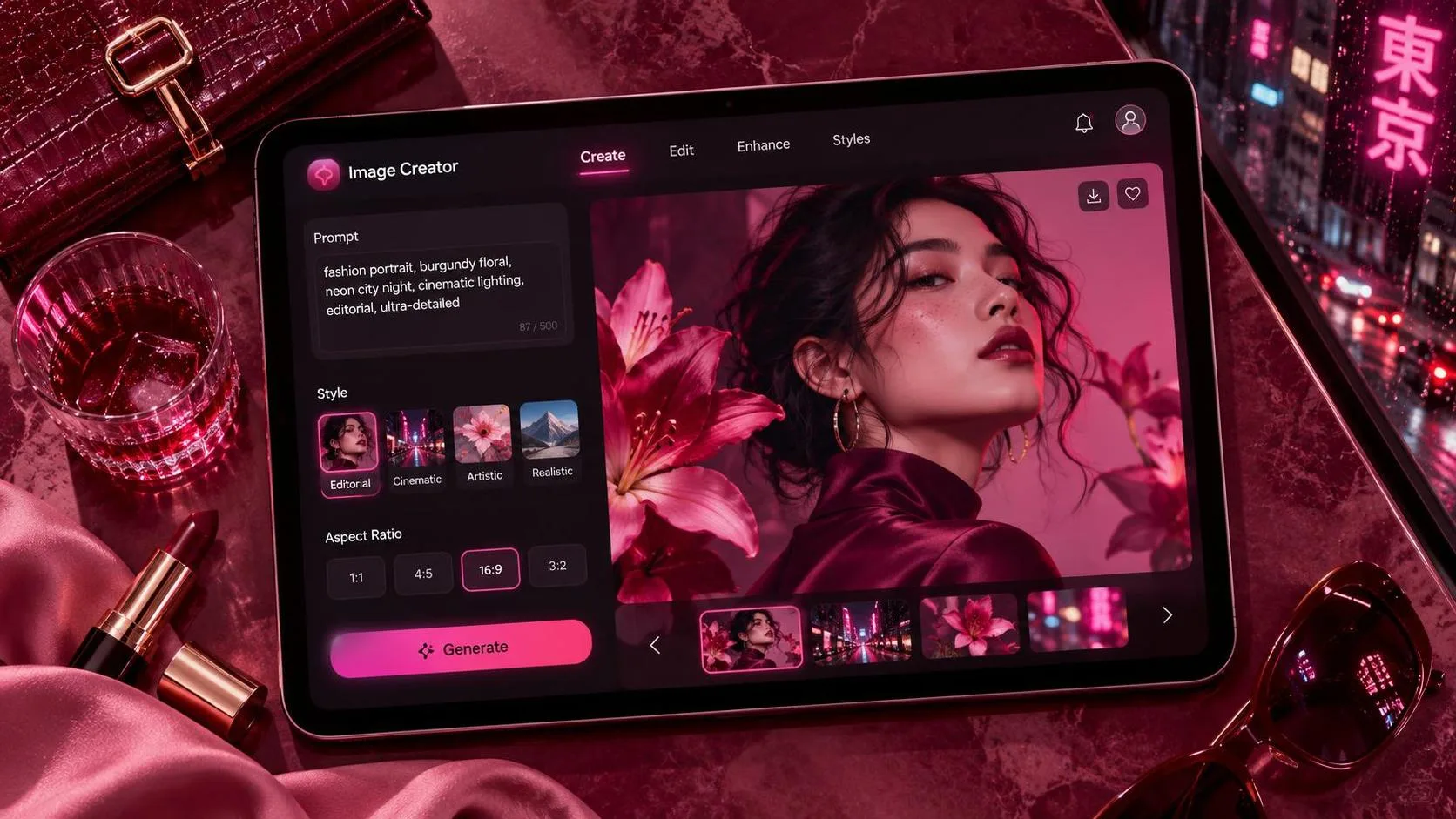
Can you create an image with ChatGPT? Yes, if image generation is available in your account and selected experience: describe what you want in a chat, submit the request, and ask for changes to the result. Start with a sketch, even if that sketch is just a sentence. A clear subject, setting, and intended use will get you much closer to a useful visual than asking for something that merely looks nice.
The Image Guide is an independent publication and is not affiliated with OpenAI or ChatGPT. Image-generation interfaces and availability can change, so the labels you see may differ by account, device, and plan. The name Image2.5 is used in some discussions, but its availability and features should be checked against OpenAI’s own product information rather than assumed from the name alone.
How to make your first image
Open ChatGPT and look for an image creation option in the composer or tools menu. You may also be able to request an image directly in the conversation. If you don’t see an option or your request isn’t supported, check your account’s available tools and plan rather than assuming you have written the prompt incorrectly.
Describe the image in ordinary language. For a first attempt, specify the subject, the setting, the visual style, and where the finished image will appear. For example:
“Create a square image for a neighborhood coffee shop’s social post. Show a ceramic mug of black coffee on a pale wooden table, lit by soft morning window light. Leave open space in the upper right for a headline. Make the mood calm and inviting.”
This brief does more than name a coffee mug. It gives the image a job: leave room for a headline in a square social post. That choice makes the composition easier to use later, even if you add the type in a separate design tool.
Submit the request and inspect the result at a useful size. You are looking for the right subject and overall arrangement first, not perfect foam or a charmingly irregular tabletop. If the composition is wrong, fix that before spending time on smaller details.
Can you create an image from a reference?
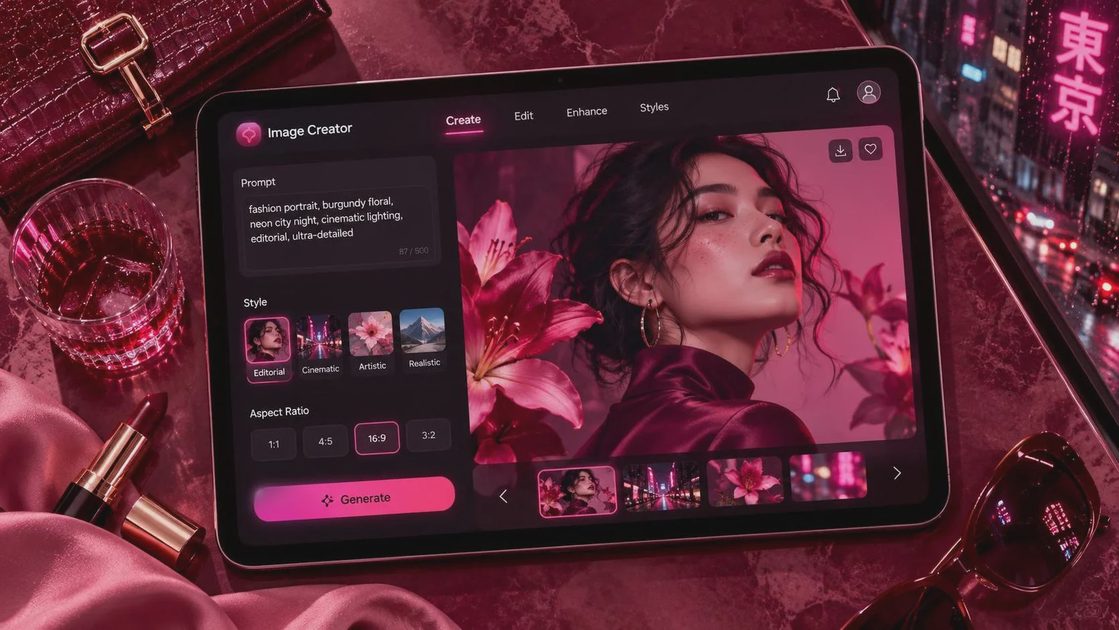
You can ask for an image based on a reference when the interface supports image uploads. Attach a photo or a simple sketch, then explain which parts matter and which parts should change. A rough drawing with a rectangle marked “text” can be more useful than a paragraph of vague art direction.
For example, upload a photo of a handmade mug and ask: “Use this mug as the subject. Place it on a light wood table by a window, and leave the upper right corner clear for a headline. Keep the handle shape and glaze colors close to the reference.”
Treat the result as an interpretation, not a guaranteed product replica. Check the handle, proportions, glaze, and any maker’s mark against the original. If the image is meant to sell that exact mug, a real photograph is usually the safer starting point; an attractive approximation can mislead a customer.
Only upload images you have permission to use, especially if they contain client work, private information, or recognizable people. Before using a reference, consider whether the service’s data controls and applicable terms meet the needs of the project.
Revise the image without losing the idea
A first draft can be close and still miss the brief. Imagine the coffee image has lovely light but places the mug in the center, leaving nowhere for your headline. Instead of starting over with a completely different description, name the problem and preserve what works:
“Move the mug to the lower left and keep the soft morning light and pale wood surface. Leave the upper right third uncluttered for a headline. Do not add text.”
That is a revision instruction, not a magic formula. The next result may still change details you wanted to keep. If it does, repeat the important constraints or return to an earlier version if the interface allows it. Change one major thing at a time when possible; it makes the cause of an improvement or setback easier to spot.
Some interfaces also offer a way to select an area for editing. If yours does, try selecting the distracting object or background area and describe the replacement. Check the edges afterward: shadows, reflections, and repeating patterns can reveal an awkward edit.
Handle text, logos, and exact details carefully
Image generators can produce text, but spelling and letter shapes may still need correction. If a headline must be exact, ask for clean space in the image and add the words afterward in a design application. This also lets you change the offer or date without regenerating the whole visual.
The same principle applies to logos and packaging. A generated label might look convincing at a glance while inventing ingredients, distorting a logo, or changing the size of a product. Use an approved logo file and verified product information in your final layout. For a product-heavy advertisement, consider combining a real product photograph with a generated background instead of asking the generator to reproduce every detail.
If you need a particular crop, describe the intended shape and placement in the prompt, then verify the actual file dimensions after saving. A request for a square or wide composition does not replace checking the exported file against the requirements of the platform where it will appear.
Save, review, and publish with confidence
Download the result using the controls available in your interface, then open the saved file outside the chat. Look at it both full size and at the size your audience will see. Small previews can hide strange edges; large ones can make minor texture flaws seem more important than they are.
Before publishing, check the visual against the brief: Is the subject recognizable? Is there enough room for the message? Are hands, reflections, product details, and background objects plausible? If people are pictured, consider whether the image could mislead viewers about a real event or endorsement.
Finally, review the applicable terms and any disclosure requirements for your use. Rights and platform rules can depend on the tool, the source material, and the context. Save the prompt and the version you chose alongside the finished file; when someone asks for a different crop next week, you’ll have a starting point rather than a mystery mug.