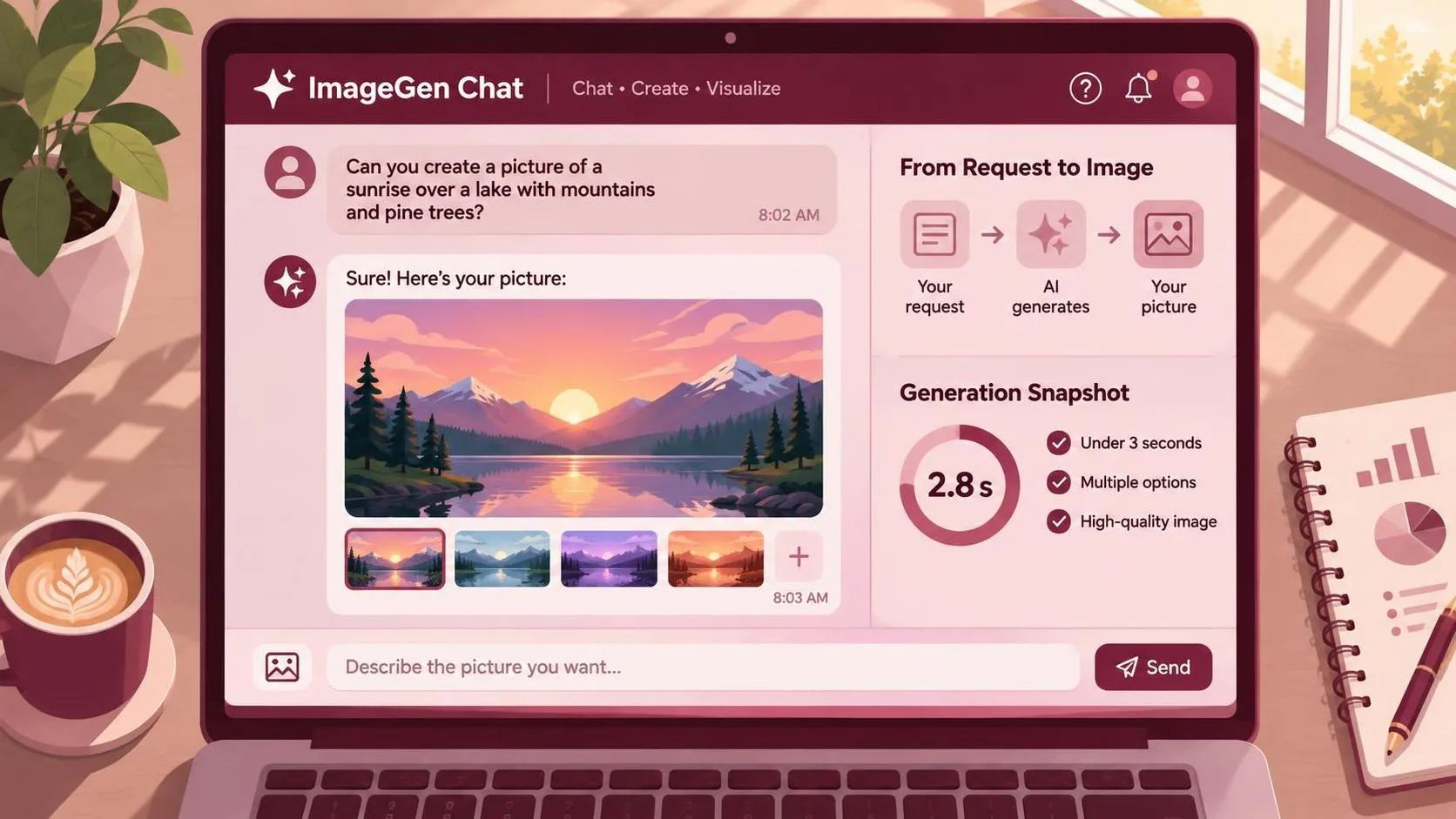
An ai chat image generator lets you describe a picture in a conversation, generate a draft, and ask for changes without starting your brief from scratch. The useful part isn't simply making an image appear. It's being able to say, “Move the product left and leave room for a headline,” then judge whether the next version actually solves the problem.
For most beginners, ChatGPT is a straightforward place to start because you can develop the brief and request images in the same conversation. Microsoft Copilot is another option for people who already work in Microsoft's ecosystem. Adobe Firefly is worth considering if your next stop is an Adobe design workflow. Availability, usage limits, editing controls, and commercial terms can change, so check the relevant product page before committing to one.
One note for readers looking specifically for Image2.5: I can't verify that name as an official, available ChatGPT image capability. Check the model or image-generation options shown in your account rather than assuming a particular name or feature is available. The Image Guide is an independent publication and is not affiliated with OpenAI or ChatGPT.
Start with a sketch, not a magic phrase
Before opening an ai chat image generator, decide what the picture needs to do. A social ad, for example, needs a clear focal point and space for a message; an attractive image with no room for the headline creates more work downstream.
Start with a sketch. It can be a rough rectangle with a circle for the product and a blank area for text. Write down the audience, format, subject, setting, lighting, and one practical constraint. For a fictional candle brand, that might mean a square social post, a ceramic jar, soft window light, and empty space on the left.
Then turn those notes into a request:
“Create a square social image of an unbranded cream ceramic candle jar on a pale wood table. Use soft morning window light and a warm, understated color palette. Place the jar on the right, with clean empty space on the left for a headline. Keep the background simple and avoid adding text.”
That prompt gives the generator a job, not just a mood. It also leaves the headline for a design tool, where you can control the spelling and type.
Read the first draft like a designer
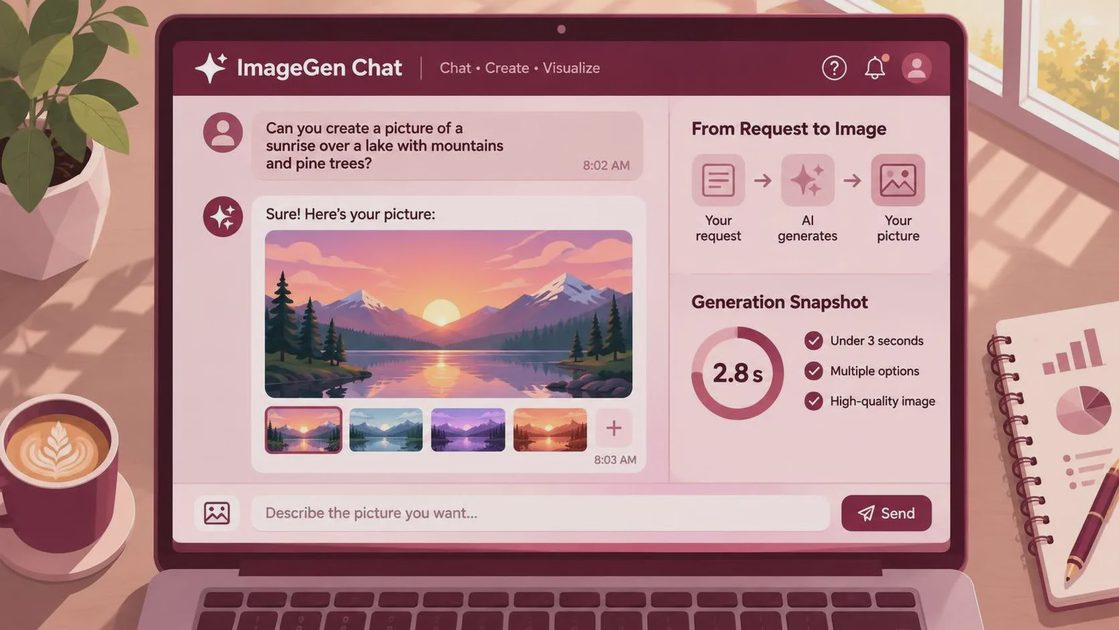
Treat the first result as a layout proposal. Check the large things before the tiny ones: Is the subject where you requested it? Is the empty space genuinely usable, or does a branch wander through your future headline? Does the lighting make sense for the setting?
Next, inspect the details that matter to the assignment. A candle jar should have a believable rim and a stable base. A product scene should not quietly change the shape of the item or add a fictional label. A lovely shadow won't rescue a jar that looks as if it might roll off the table.
If the composition is close, revise the biggest problem first. For the candle example, you could say:
“Keep the square format, warm light, and jar on the right. Make the left half a clear, uninterrupted pale background for a headline. Keep the jar's shape simple and remove any lettering.”
This is an illustrative revision, not a promise of a particular result. A generator may alter details you asked it to preserve, so compare the new draft with the old one. If the second image fixes the background but changes the jar, use whichever version better serves the final layout or try a narrower edit if the tool offers one.
Use references without surrendering control
A reference image can communicate a composition or material faster than a paragraph can. If your chosen tool supports uploads, try sharing your own sketch and asking it to follow the arrangement while developing the lighting and setting. Describe what to preserve: “Use this layout as a guide; keep the product on the right and the left side open.”
For a real product, upload an image you have permission to use. Even then, don't assume generated details are faithful. Compare the silhouette, cap, label, color, and proportions with the actual item. If those details must be exact, a safer workflow is to use the original product photograph and create or assemble the surrounding background separately.
Avoid uploading confidential client materials unless you have permission and understand the service's data settings. Also avoid asking for a close imitation of a living artist's distinctive work. Describe the qualities you need instead: limited colors, loose brush marks, high contrast, or a particular composition.
Finish the image outside the chat
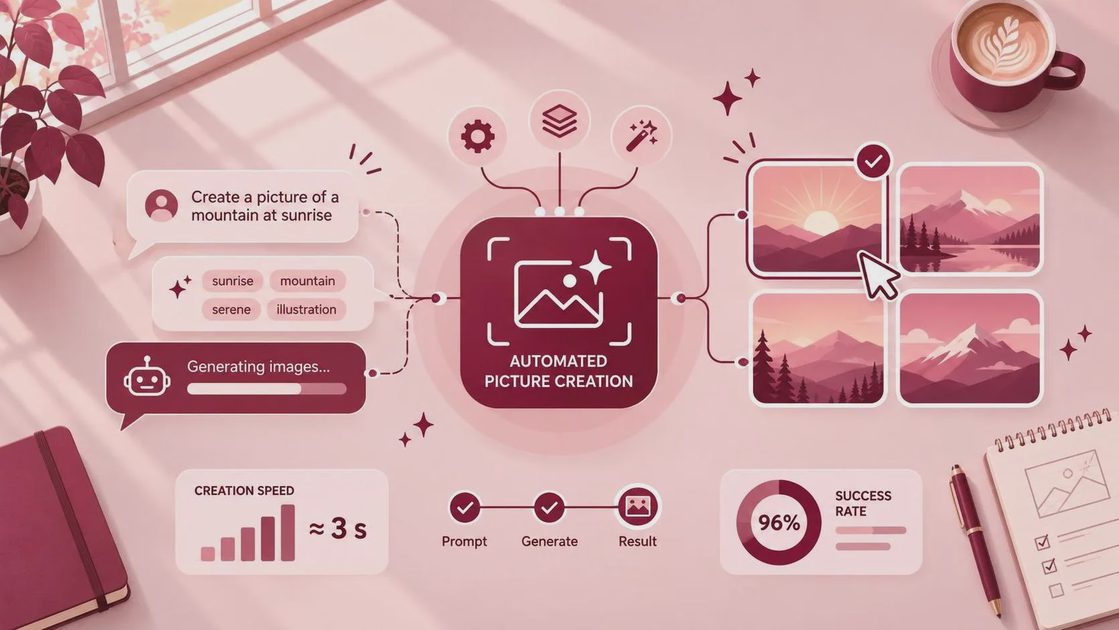
Generated text can look convincing at a glance and still contain misspellings or strange letterforms. For packaging, menus, ads, and other work where the words matter, generate a clean background and add final copy in a design application. The same goes for logos: use an approved asset rather than relying on the generator to reproduce one accurately.
Check the image at its intended size. A visual that looks polished on a phone may reveal soft edges or odd textures when enlarged for a poster. Crop it to the actual placement, including any platform interface that could cover the subject or headline. If you need print production, confirm the required dimensions and file specifications with your printer before building the final file.
Keep the prompt and the version you chose alongside the finished design. A short note such as “second draft had better empty space; original product photo added afterward” makes future revisions much less mysterious.
Know when to change the workflow
Conversational generation is especially useful for exploring art direction, making mood boards, and drafting backgrounds. It is less dependable when every detail must remain fixed across multiple images, or when a product, person, diagram, or piece of text must be represented exactly.
For a campaign with several placements, establish the composition and palette first, then build a reusable layout around approved assets. If repeated generations keep changing the product, stop asking for more variations and bring the real product image into the design yourself. Fewer surprises, fewer apologies to the packaging team.
Finally, review the service's terms and the rights attached to any uploaded materials before commercial use. An attractive output isn't automatically cleared for every purpose, and trademark, likeness, and other legal questions depend on the project. When the stakes are high, get qualified legal advice rather than treating the generator's response as permission.