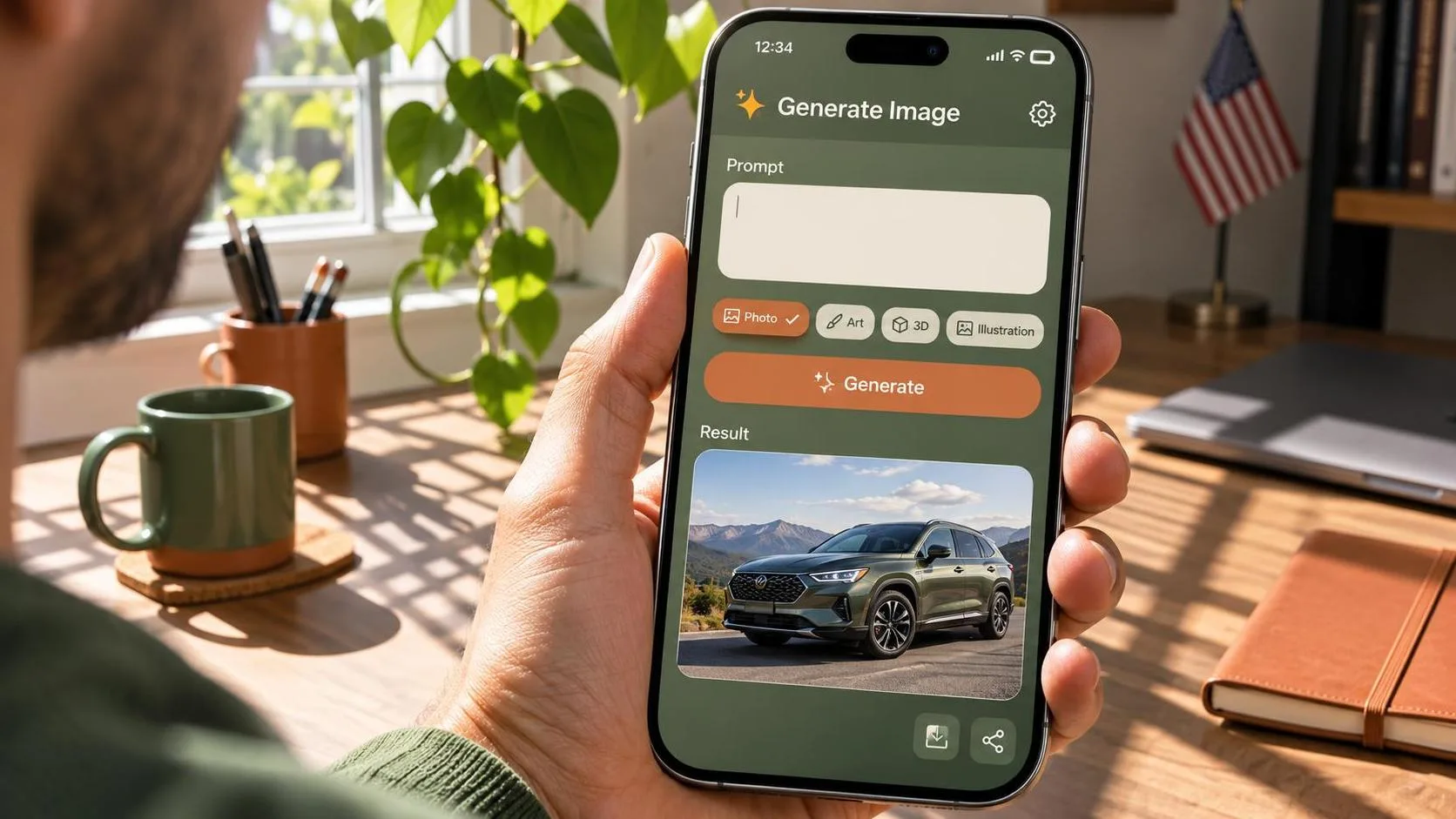
To generate photo images with AI, start by describing a specific subject, setting, light source, and intended use. Enter that brief in an image generator, review the result at full size, and revise the parts that miss the mark. You can make a convincing image from a short prompt, but a usable one usually takes a little art direction.
ChatGPT is a useful starting point if you want to describe an image and refine it through conversation. Adobe Firefly is worth exploring when your workflow centers on Adobe’s creative tools. Midjourney suits people who enjoy exploring different visual directions. Each has its own interface, access requirements, and terms, so check those before choosing one for a commercial project.
One clarification: a generated image can look like a photograph, but it is not a record of an event that necessarily happened. That distinction matters when you publish it.
Start with a sketch, not a camera catalog
Before you generate photo concepts, decide what the image needs to do. A café’s website banner has a different job from a square social post or a product listing. Sketching can be as simple as drawing a rectangle and marking where the subject and any headline should go.
For a practical example, imagine a coffee shop needs a wide website banner. The visual goal is a calm morning scene with a cup on the right and room for a headline on the left. The cup should feel inviting; the empty space should make the page easy to read.
Try this prompt in an image-capable ChatGPT conversation:
“Create a photorealistic wide website banner for a coffee shop. Show a ceramic cup of black coffee on a pale wooden table, positioned in the right third of the frame. Soft morning window light comes from the left. Use warm, muted colors and a simple background. Leave the left half uncluttered for a headline. No text or logos.”
If image creation is available in your account, submit the prompt and wait for the result. The exact controls and access options can change; follow the image-creation options shown in your interface.
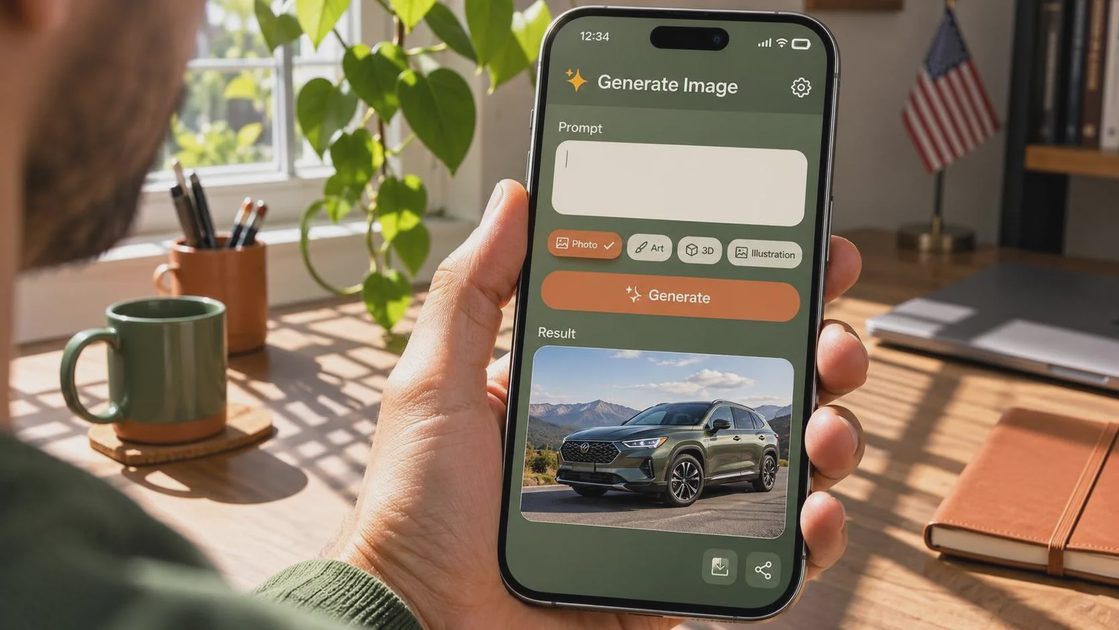
Generate photo drafts with a clear visual brief
That first prompt works because each detail has a job. The wide format serves the banner, the cup position protects the headline space, and the window light gives the scene a direction. “Photorealistic” alone leaves all of those choices to the generator.
To generate photo drafts for another assignment, swap in your own subject and use the same building blocks: what appears in the frame, where it sits, what surrounds it, how it is lit, and where the image will appear. Add a mood only when it helps guide an actual visual choice. “Quiet morning light” is more useful than a string of adjectives like “amazing, stunning, perfect.”
Specific does not have to mean long. For a restaurant social post, you might ask for a close view of a bowl of tomato soup on a linen-covered table, lit by a nearby window, with space above the bowl for a caption. Then add the caption in a design tool rather than depending on generated lettering.
If you have an image you are allowed to use as a reference, describe what the tool should borrow from it: the composition, color palette, or lighting, for example. Avoid assuming a reference will preserve every detail exactly. Upload only material you have permission to use, especially when a client’s product or unpublished campaign is involved.
Revise the image you actually got
A first draft might put the coffee cup in the center, crowd the left side with props, or give the cup an odd handle. Those are examples of problems to look for, not guaranteed results. Choose the issue that most affects the image’s purpose and ask for that change first.
A focused revision could be: “Move the cup farther right and remove the spoon and extra objects. Keep the left half mostly empty and preserve the soft window light.” If the composition is right but the cup looks artificial, try: “Keep the composition. Make the ceramic surface slightly uneven and matte, with a believable handle and natural contact shadow.”
Changing one or two things at a time makes it easier to judge what helped. The generator may still alter details you wanted to keep, so compare each version with your brief. If a revision sends the image in the wrong direction, return to an earlier version where the interface allows it, or start a fresh draft with the clearer prompt.
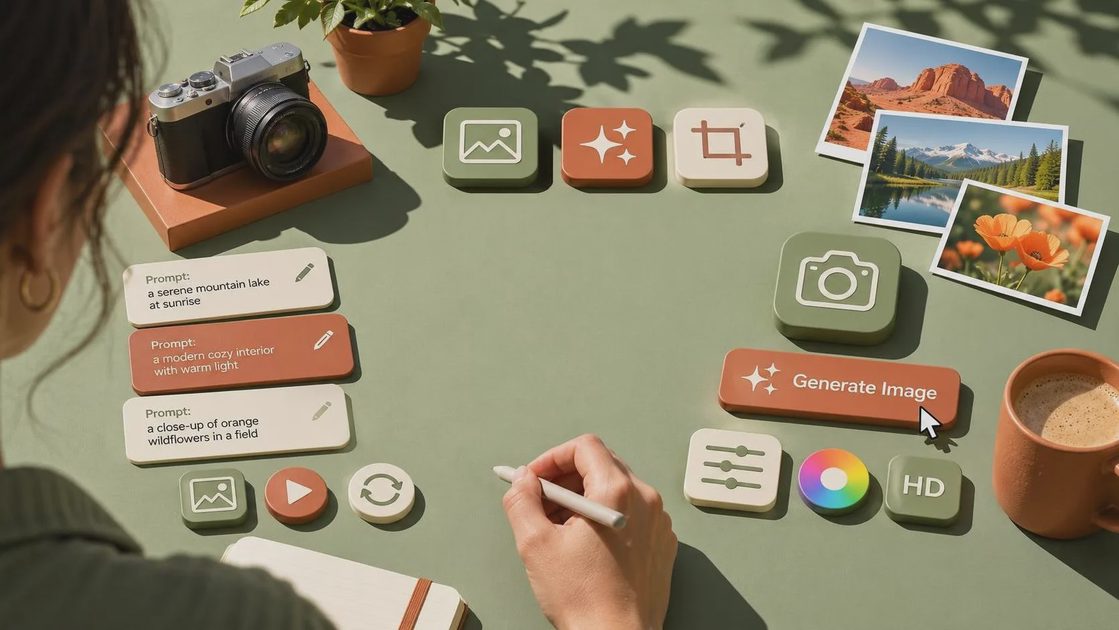
Check the details before you publish
A convincing thumbnail can hide a lot of mischief. Open the image at the size it will actually appear and inspect edges, reflections, shadows, handles, and repeated objects. Look for a spoon that melts into a table or a reflection that has no matching object. Crop the image to its intended shape, too: a beautiful wide scene may lose its subject on a phone screen.
Product images need a stricter review. AI can change a package’s shape, invent a label, or make a product look unlike the item a customer will receive. Use an approved product photograph when accuracy is essential, and treat a generated scene as a concept or background unless you can verify the final representation. Add exact logos, prices, and legal copy separately, then check them against approved source files.
For people, avoid creating a misleading endorsement or making an invented scene look like documented news. Get appropriate permission before using someone’s likeness, and follow applicable platform rules and disclosure requirements. Review your generator’s terms for commercial use; permission to use a tool does not automatically settle every trademark, publicity, or copyright question.
Save a repeatable workflow
When you generate photo assets for a campaign, save the brief alongside the prompt and final file. Note the intended placement, crop, reference permissions, and edits needed afterward. That small record makes it easier to create a matching image later without pretending a prompt is a magic formula.
Before delivery, check the exported dimensions and file format against the destination’s requirements. Keep an uncropped version so you can adapt it for a banner or social post. Most importantly, judge the image by its job: if the headline fits, the subject reads clearly, and the details hold up, you have something more useful than a pretty accident.
The Image Guide is an independent publication and is not affiliated with OpenAI or ChatGPT.